# AA Events
An approachable, theme‑friendly events plugin for WordPress. It adds an `Event` post type, useful taxonomies, ACF‑powered fields, and accessible front‑end templates (archive, single, and a calendar page template). Everything can be overridden from your theme when you need custom markup.
## What you get
- Event post type with archive at `/events`.
- Two taxonomies: `Event Types` (hierarchical) and `Event Tags` (non‑hierarchical).
- Event details via ACF: date/time, cost, location (online URL vs in‑person address).
- Front‑end templates: archive list, single view, and a calendar page template.
- Theme overrides for templates and styles with simple folder conventions.
- Sensible defaults: admin column for date, sortable by event date; taxonomy views sort upcoming first; main events archive sorts newest first.
---
## Requirements
- WordPress 5.8+ (uses modern APIs like `wp_date()` and template filters).
- Advanced Custom Fields (free) is required for the event fields. The plugin will load without ACF, but the Event fields and related UI will not be available until ACF is active.
---
## Installation
1. Copy the `aa-events` folder into `wp-content/plugins/`.
2. (Required) Install and activate the “Advanced Custom Fields” plugin.
3. In WordPress Admin → Plugins, activate “AA Events”.
4. Visit Settings → Permalinks and click Save if your events archive doesn’t appear (activation also flushes rewrites).
---
## Quick Start
1. Create events: Admin → Events → Add New.
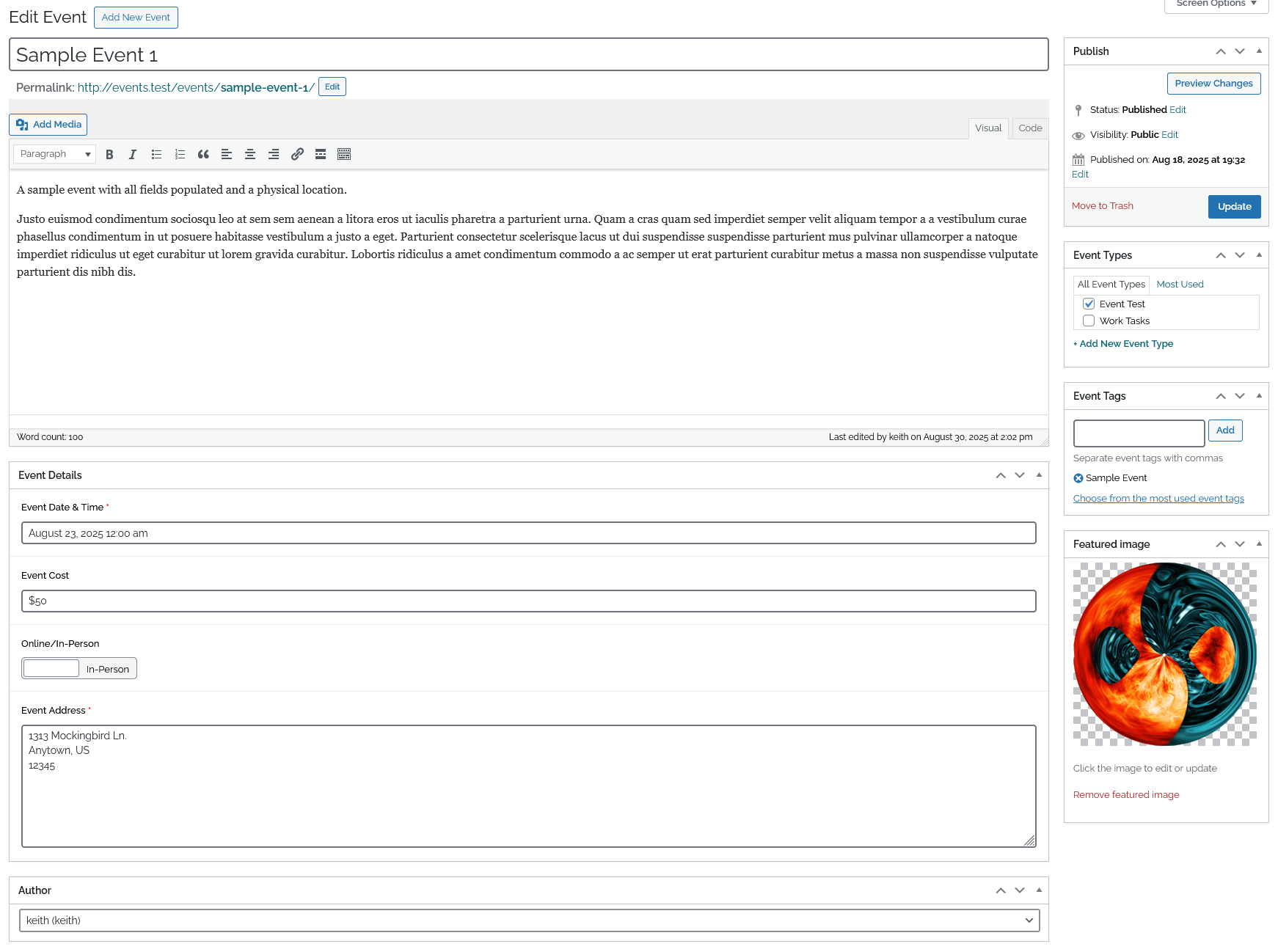
2. Fill in the “Event Details” fields:
- Event Date & Time (required)
- Event Cost (optional)
- Online/In‑Person toggle (required)
- Event URL (required when Online)
- Event Address (required when In‑Person)
3. View your list of events at `/events` and single event pages at their permalinks.
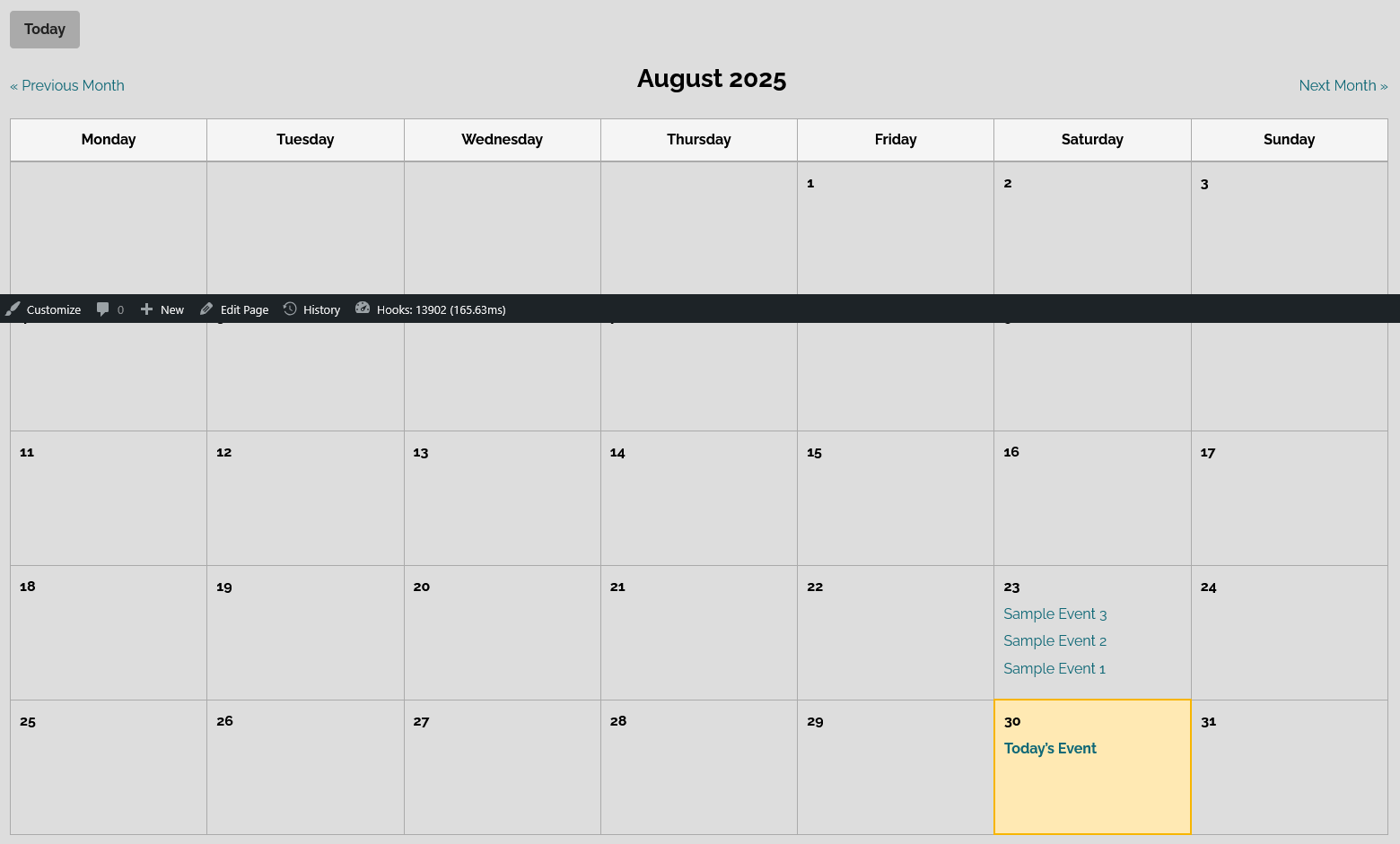
4. For a calendar view, create a new Page and choose the “Events Calendar” template, then publish.
---
## Content Model
- Post type: `event`
- Public, has archive (`/events`), supports title, editor, author, thumbnail.
- Default sort:
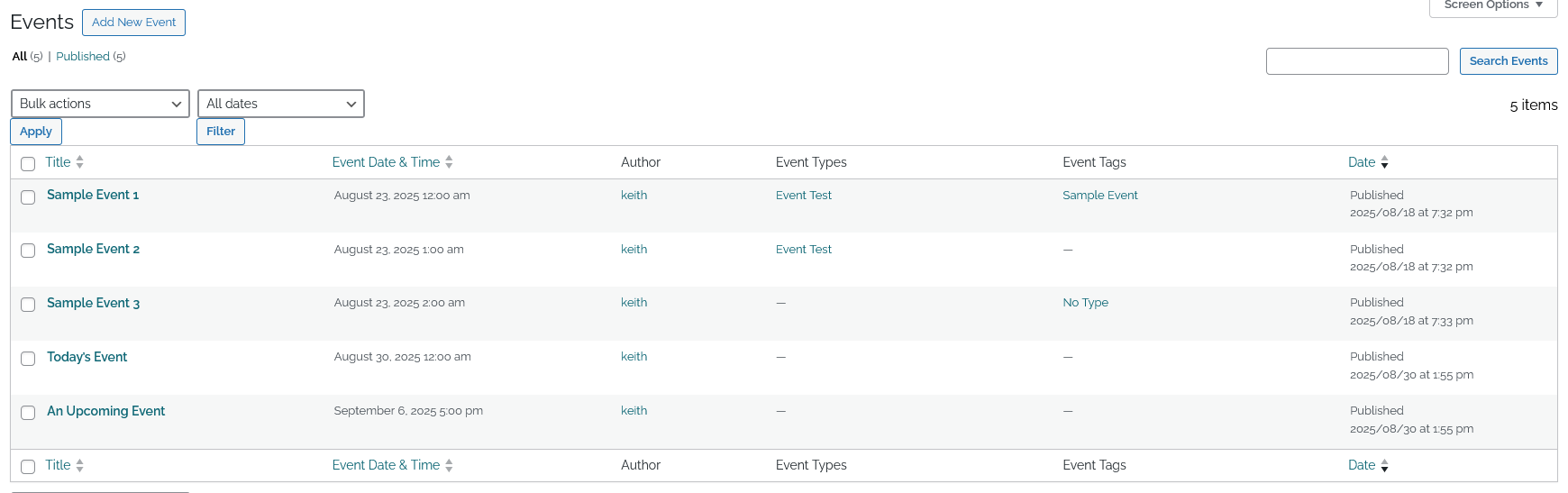
- Admin list: ascending by Event Date & Time.
- Taxonomy views: ascending (upcoming first).
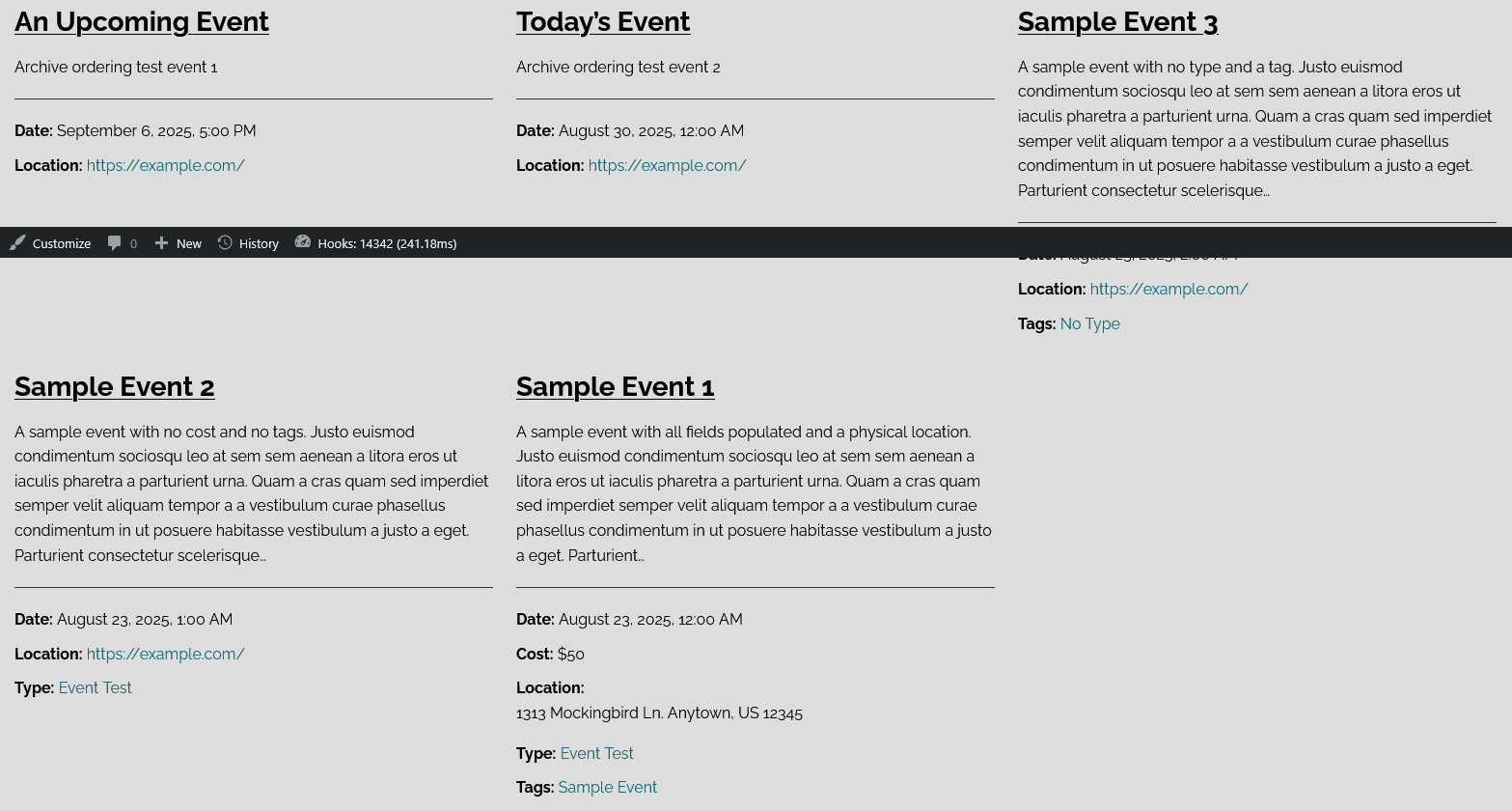
- Main events archive: descending (newest first).
- Taxonomies
- `event_type` (hierarchical, slug `event-type`)
- `event_tag` (non‑hierarchical, slug `event-tag`)
- Admin UX
- Adds a “Date & Time” column on Events list, sortable by the event date.
---
## Front‑End Views
- Archive: `/events` uses `templates/archive-event.php`.
- Single: each event uses `templates/single-event.php`.
- Calendar page: Page → Template → “Events Calendar” renders `templates/template-calendar.php` which includes `templates/calendar.php`.
- Calendar navigation: query args `?month=MM&year=YYYY` change the visible month; “Today” jumps back to the current month.
---
## Theme Overrides
The plugin is designed to be theme‑override friendly. Copy any template into your theme under `your-theme/aa-events/` and it will be used instead of the plugin version.
- Templates you can override:
- `archive-event.php`
- `single-event.php`
- `template-calendar.php` (page template)
- `calendar.php`
Example: to override the archive, create `your-theme/aa-events/archive-event.php`.
Page template in a theme: the “Events Calendar” page template also respects theme overrides at `your-theme/aa-events/template-calendar.php`.
---
## Styling
- Default CSS ships with the plugin and is enqueued automatically.
- To replace it, add `your-theme/aa-events/aa-events.css`. If present, the theme stylesheet is loaded instead of the plugin’s.
Note: The bundled CSS is intentionally minimal. Use the override to match your theme.
---
## Developer Notes
- Template loader helpers:
- `events_get_template( $template_name, $args = [], $template_path = 'aa-events/', $default_path = AA_EVENTS_PLUGIN_DIR . 'templates/' )`
- `events_locate_template( $template_name, $template_path = 'aa-events/', $default_path = AA_EVENTS_PLUGIN_DIR . 'templates/' )`
- Filters/actions:
- `events_get_template` (filter: final located path)
- `events_locate_template` (filter: path resolution)
- `events_before_template_part` / `events_after_template_part` (actions around includes)
- Page template registration (no theme file required):
- Registered as “Events Calendar” and loads from the plugin when selected.
---
## Screenshots
---
## Override Examples
Below are minimal examples showing how to override templates and styles from a theme. Copy into your theme under `your-theme/aa-events/`.
Example: override archive layout at `your-theme/aa-events/archive-event.php`:
```php
```
Example: replace styles by adding `your-theme/aa-events/aa-events.css`:
```css
/* Theme override for AA Events */
.aa-events-calendar th,
.aa-events-calendar td { border-color: #ddd; }
.aa-events-calendar .today-cell { background: #e6f7ff; border-color: #1890ff; }
.aa-event-title { font-size: 1.25rem; margin: .25rem 0 .5rem; }
```
---
## FAQ
- The “Events Calendar” template doesn’t show up?
- Ensure the plugin is active. The template is registered by the plugin and appears in the Page Template dropdown. If you still don’t see it, check the Page sidebar and expand the Template panel.
- Calendar shows no events?
- Make sure you created Event posts and set the “Event Date & Time”. The calendar shows events within the selected month using site timezone.
- Can I use only the archive without the calendar?
- Yes. The archive at `/events` works independently of the calendar page template.
---
## License
GPL-2.0-or-later. See `LICENSE` or the plugin header for details.